
IPTV Smarters Failed to Authorize: Fix Login, Server URL and Xtream Codes Errors
If you use IPTV Smarters (or IPTV Smarters Pro) to watch live television and movies, you may eventually encounter an error message stating "Failed to Authorize" or "Authorization failed for above host."
These errors prevent the application from connecting to your provider's server, leaving you stuck on the login screen. While this issue is frustrating, it is usually easy to resolve once you understand what is causing it.
This step-by-step troubleshooting guide will help you understand why these authentication errors occur and guide you through the process of fixing them, whether the problem lies with your login details, your network, or the application itself.
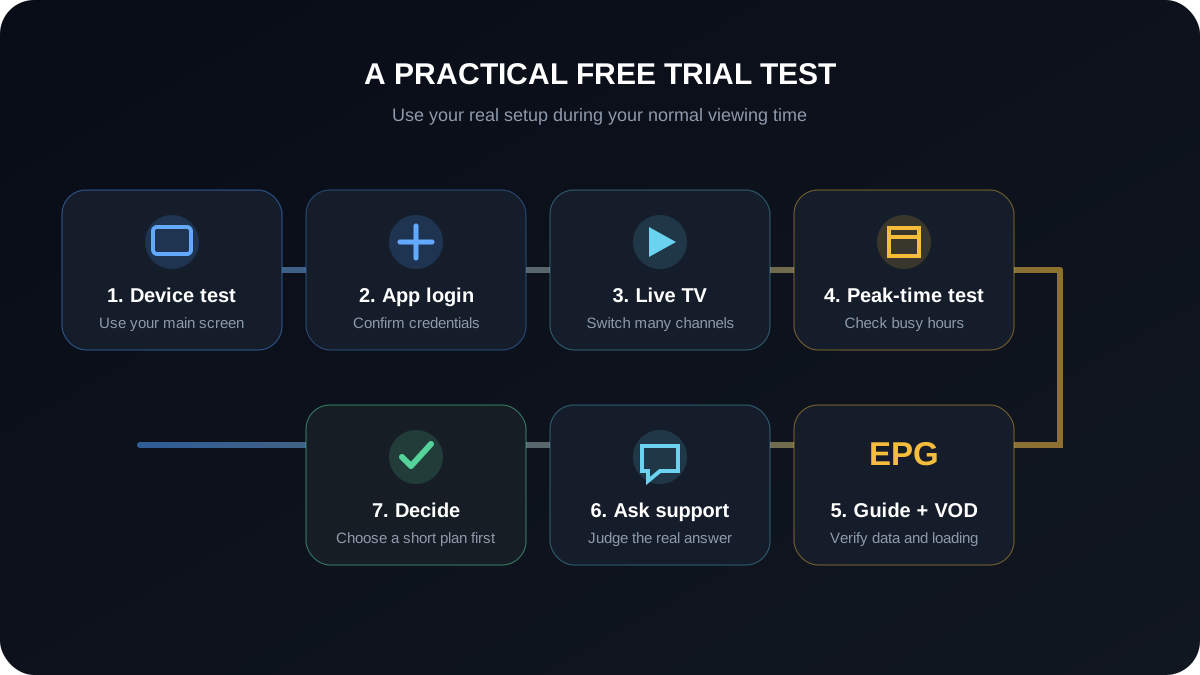 IPTV Troubleshooting Flowchart
What Does "Failed to Authorize" Mean?
It is important to understand that IPTV Smarters is primarily a media player. It does not provide any content on its own. Instead, it acts as a bridge between your device and your IPTV service provider.
To build that bridge, IPTV Smarters relies on an authentication method, most commonly Xtream Codes API. This requires three pieces of information:
- Username
- Password
- Server URL (sometimes called the Portal URL or Host)
When IPTV Smarters displays a "Failed to Authorize" error, it means the app successfully reached out to the internet, but the IPTV server rejected the connection.
This error does not have one single cause. It can result from incorrect credentials, an expired subscription, network blocks, or even temporary provider-side server issues. The best approach is to troubleshoot these possibilities logically, starting with the most common culprits.
Fix 1 — Check Your Username and Password
The most frequent cause of authorization failure is a simple typo in the login credentials.
IPTV usernames and passwords are case-sensitive. A single uppercase letter entered as lowercase, a missed number, or an accidental space at the end of the text will cause the server to reject the connection.
- Action: Carefully re-enter your username and password exactly as provided by your IPTV service. If you are setting up IPTV Smarters on a mobile device or a computer, copy and paste the credentials to avoid typing mistakes.
Fix 2 — Check Whether Your Subscription Is Active
If your credentials are typed perfectly but authorization still fails, the next logical step is to check your account status.
An expired, suspended, or inactive subscription will instantly trigger a "Failed to Authorize" error because the server no longer recognizes your account as valid.
- Action: Log into your provider's customer portal, check your original subscription email, or contact their support team to confirm that your account is active. If your account has expired, you will need to renew your pricing plan to restore access.
Fix 3 — Test Your Credentials on Another Device
Sometimes the issue is specific to the device you are using rather than the account itself. Testing your account on another compatible device can quickly isolate the problem.
- Action: If IPTV Smarters fails to authorize on your Smart TV, try installing the app on your smartphone or tablet and logging in with the exact same credentials.
- If it works on the mobile device, your account is fine, and the issue lies with your Smart TV's network or app installation.
- If it fails on both devices, the problem is likely account-related or a broader server issue.
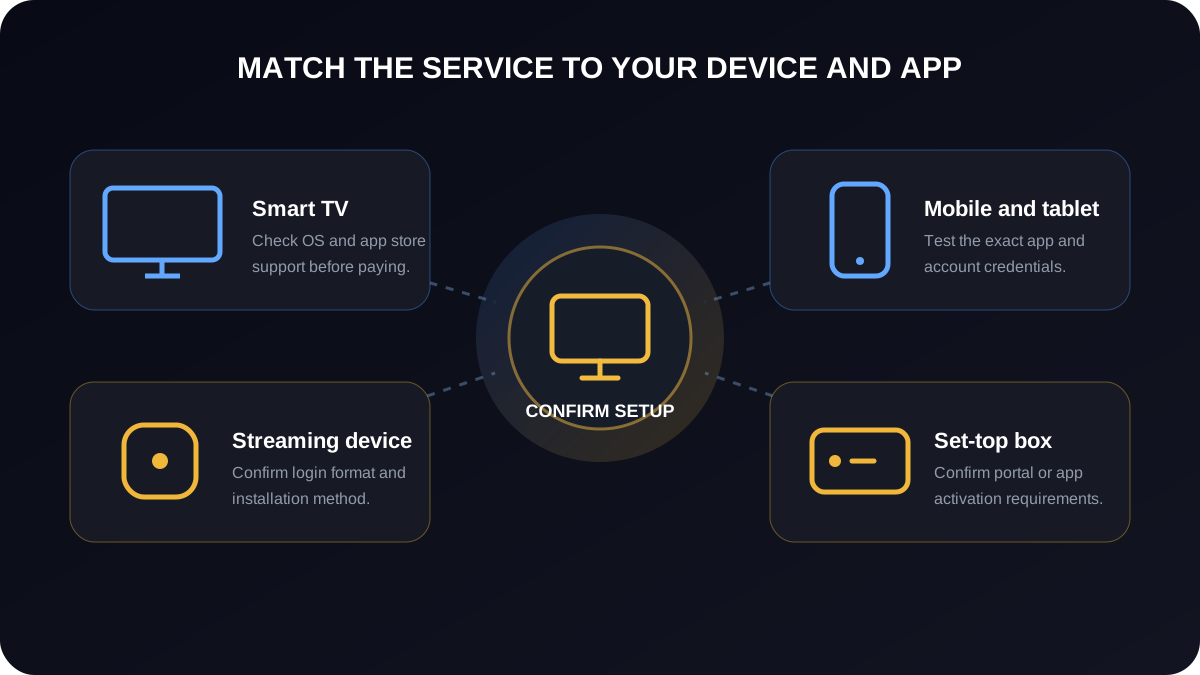 IPTV Device App Compatibility
Fix 4 — Check the Server URL, Protocol and Port
The Server URL is the exact address IPTV Smarters uses to find your provider. If this address is slightly off, the app cannot communicate with the database.
A typical server URL includes a protocol (http or https), a domain or IP address, and a port number. For example: http://example.com:8080
- Action: Ensure you are using the exact URL provided by your service.
- Do not randomly guess port numbers (like 80, 8080, or 25461) if they were not explicitly given to you.
- Pay attention to whether the URL starts with
http://orhttps://. Entering the wrong protocol will often result in a connection failure. - Never attempt to use a Server URL belonging to a different IPTV provider; your credentials will not work on their network.
Fix 5 — Check Your Internet Connection and DNS
If your network is actively blocking the IPTV connection—either through a restrictive firewall or ISP-level blocking—IPTV Smarters will not be able to authorize your account.
- Action: First, verify that your device is connected to the internet by opening another streaming app (like YouTube). Next, try changing your network environment. If you are on home Wi-Fi, try connecting your device to a mobile hotspot. If the authorization succeeds on the hotspot, your home ISP or router is likely blocking the connection.
- In some cases, changing your device's DNS settings (for example, to general public DNS resolvers) can help resolve routing issues that prevent the app from reaching the server.
Fix 6 — Check Whether the IPTV Server Is Available
Occasionally, the problem is entirely out of your hands. The provider's server may be temporarily offline for scheduled maintenance or experiencing technical difficulties.
- and encounter an authorization error, check the login information provided with your account and then reach out to our support team to see if there is a known server event.
 Server and Network Troubleshooting
Fix 7 — Clear the App Data or Reinstall IPTV Smarters
If the application itself has become corrupted or is holding onto outdated cached data, it may fail to authorize even with the correct credentials and a perfect network connection.
This is especially common on Android TV and Fire TV devices.
- Action for Fire TV / Android TV:
- Go to your device's Settings.
- Select Applications > Manage Installed Applications.
- Find IPTV Smarters.
- Select Force Stop, then select Clear Cache and Clear Data.
- Restart the app and re-enter your details.
- If clearing the data does not work, try completely uninstalling the application, restarting your device, and reinstalling a fresh copy from an official or trusted source.
 Fire TV Troubleshooting Guide
What If IPTV Smarters Still Does Not Work?
If you have verified your credentials, confirmed your subscription is active, tested multiple networks, and reinstalled the app, but you are still seeing the "Failed to Authorize" error, the issue is almost certainly on the provider's end.
At this stage, you should contact your IPTV provider's technical support and provide them with the specific error message you are seeing. If your provider is unresponsive or unable to fix the issue, it may be time to consult a guide on how to choose a reliable IPTV provider.
Alternative IPTV Players
While IPTV Smarters is highly popular, it is not the only option. Testing your credentials in a different IPTV player application can help determine if IPTV Smarters specifically is the root cause of the problem.
Applications like Tivimate, XCIPTV, or standard IPTV apps available on your device's app store function similarly to Smarters and use the same Xtream Codes API login method.
Note: Changing the player will not fix an expired account, incorrect credentials, or an offline server.
Frequently Asked Questions
What does "Failed to Authorize" mean in IPTV Smarters? It means the application successfully reached the internet but the IPTV provider's server rejected your login attempt, usually due to incorrect credentials or an expired account.
Why does IPTV Smarters say "Authorization failed for above host"? This error indicates that the Server URL (the "host") is reachable, but the username and password you provided are not recognized by that specific server.
Why are my Xtream Codes not working? Xtream Codes rely on a precise Username, Password, and Server URL. If any single character is incorrect, or if the server is offline, the code will fail to authorize.
Can an expired IPTV subscription cause authorization errors? Yes. An expired or suspended subscription is one of the most common reasons for sudden authorization failures.
Why does IPTV Smarters work on one device but not another? This usually points to a local issue on the failing device, such as a corrupted app cache, a typo in the credentials on that specific device, or a network block affecting only that device.
How do I fix IPTV Smarters on Fire TV? Navigate to the Fire TV Settings, find IPTV Smarters under Manage Installed Applications, and select "Clear Data" and "Clear Cache" before logging in again.
Should I reinstall IPTV Smarters? If you have verified that your credentials are correct and your account is active, reinstalling the app can fix hidden bugs or corrupted data that prevent successful login.
Check your internet connection (try a mobile hotspot), verify the Server URL is exact, and contact your IPTV provider to ensure their servers are currently online. For more general questions, check out our FAQ page.
Security Reminder
Never post your IPTV username, password, or Server URL on public forums, social media, or in comments while asking for help. Always keep your credentials private to prevent unauthorized access to your account.
Final Thoughts
By following the troubleshooting steps outlined above, you can get back to streaming your favorite content securely and efficiently.